
This guide explains how to access BAV (Bank Account Validation) usage history in the Brick Dashboard, view validation records, and download monthly usage reports.
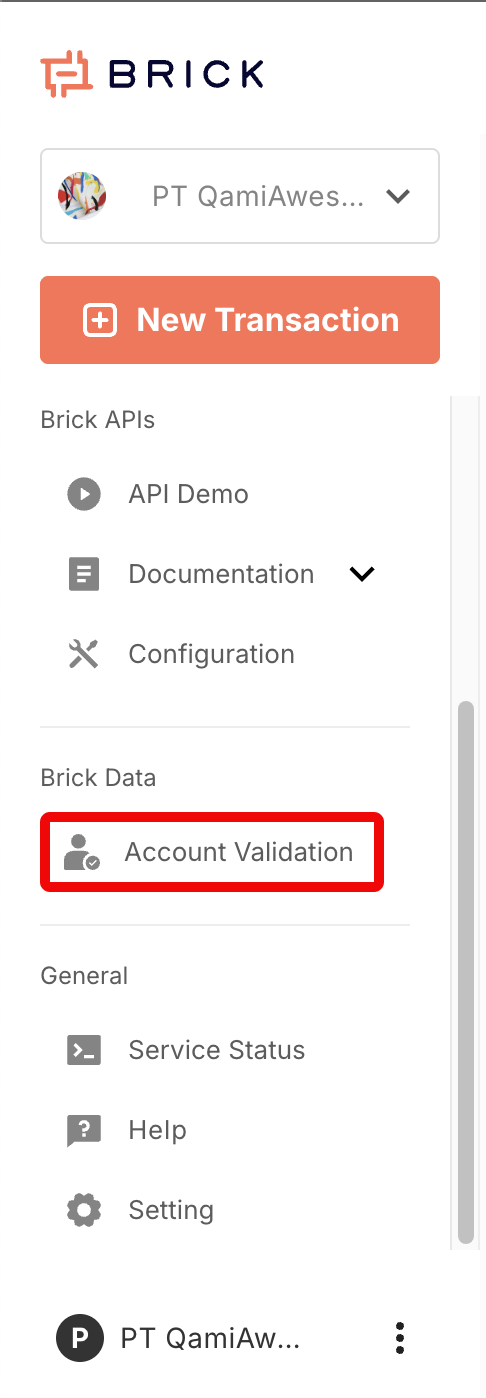
Open the Account Validation menu
- Log in to the Brick Dashboard.
- On the left sidebar (navbar), find the Brick Data section.
- Click Account Validation.
View validation history
After opening Account Validation, you will see a table containing the history of bank and e-wallet account validation.
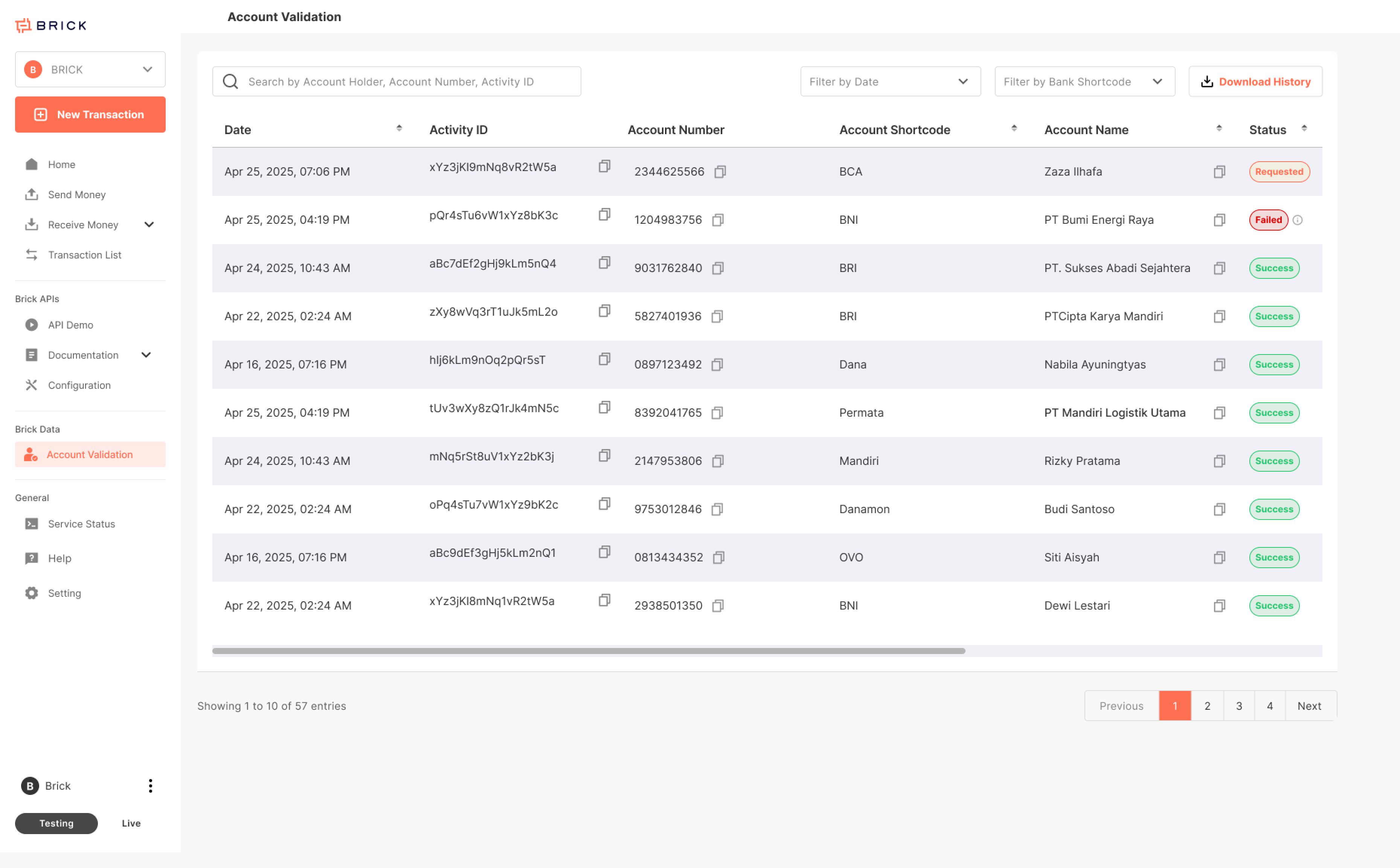
What you can do on this page:
1. Search records using the search bar (e.g., by Account Holder, Account Number, or Activity ID).
2. Filter by date using the date filter dropdown.
3. Filter by bank/ewallet provider using the bank shortcode filter dropdown.
4. Review key details in the table, such as: Date, Activity ID, account Number, Account Shortcode (Bank/eWalllet Name), Account Name (returned result), Status (e.g., Requested / Success / Failed)
Download monthly BAV usage report (Excel / CSV)
-
From the Account Validation page, click Download History (top-right).
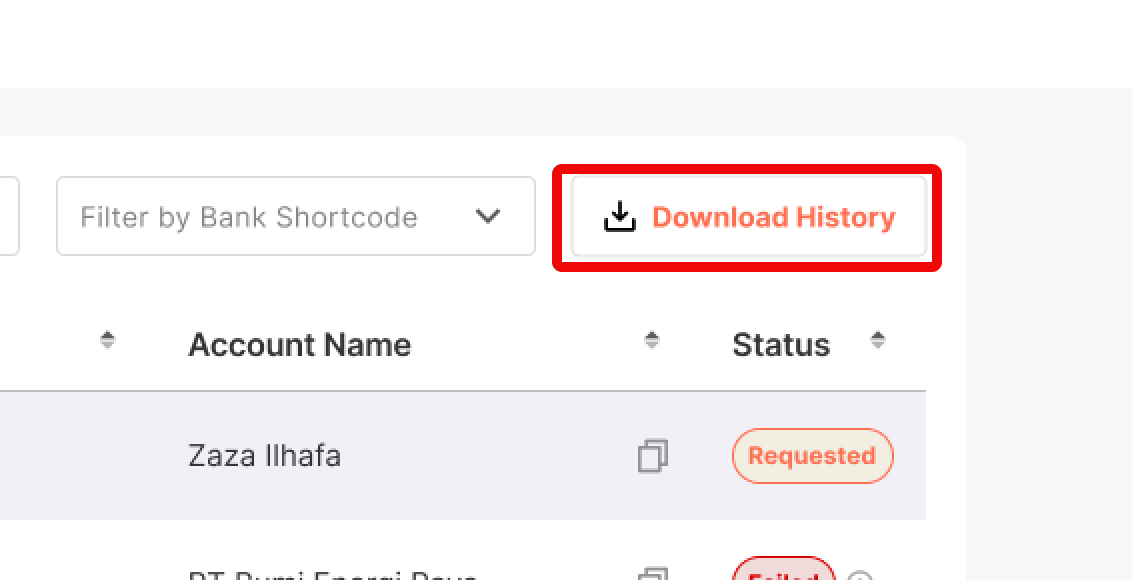
- You will be redirected to the Download Monthly Usage Report page.
- Find the month you want to download.
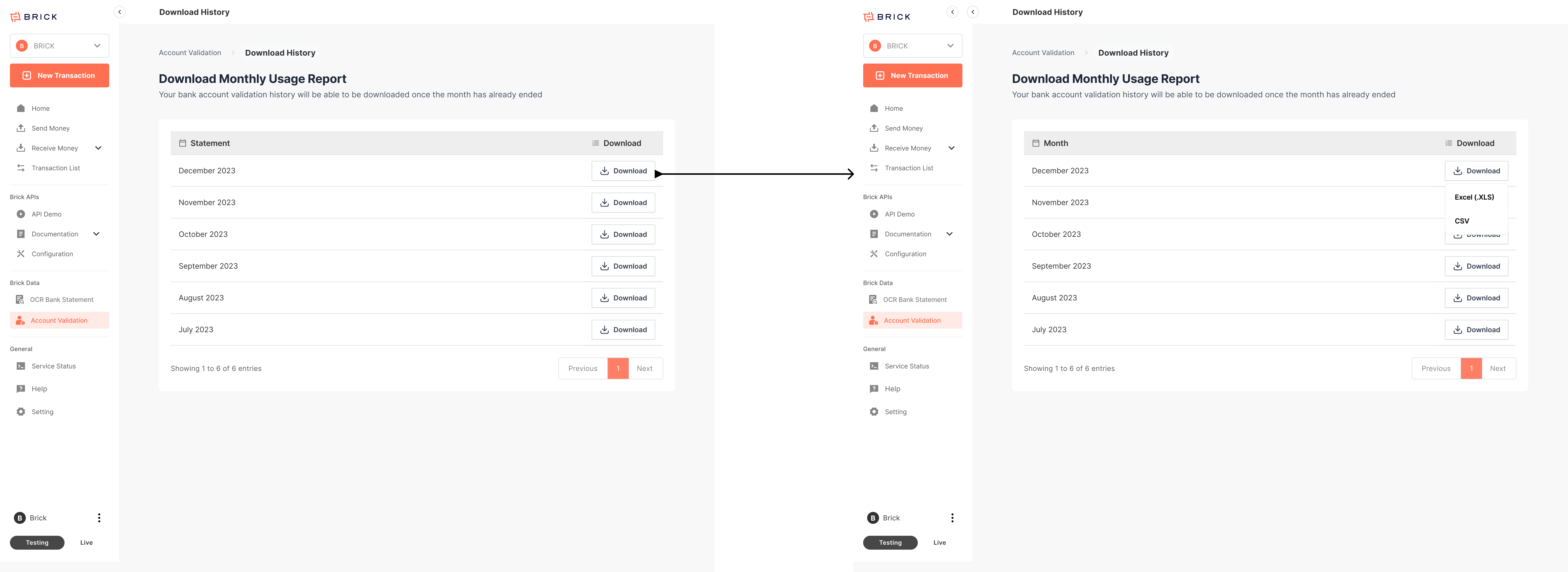
- Click Download on that row.
- Select the file format Excel (.xlsx), or CSV (.csv)
This guide explains how to access BAV (Bank Account Validation) usage history in the Brick Dashboard, view validation records, and download monthly usage reports.
Note: Monthly statements can be downloaded once the month has ended.