
Convert OCR bank statements into structured financial insights, including income, expenses, cashflow trends, and downloadable reports.
1. Overview
Bank Statement Analysis turns completed OCR statements into structured financial insights, eliminating manual review. It generates clear summaries of income, expenses, and cashflow, with key metrics, visual breakdowns, and downloadable PDF reports.
⸻
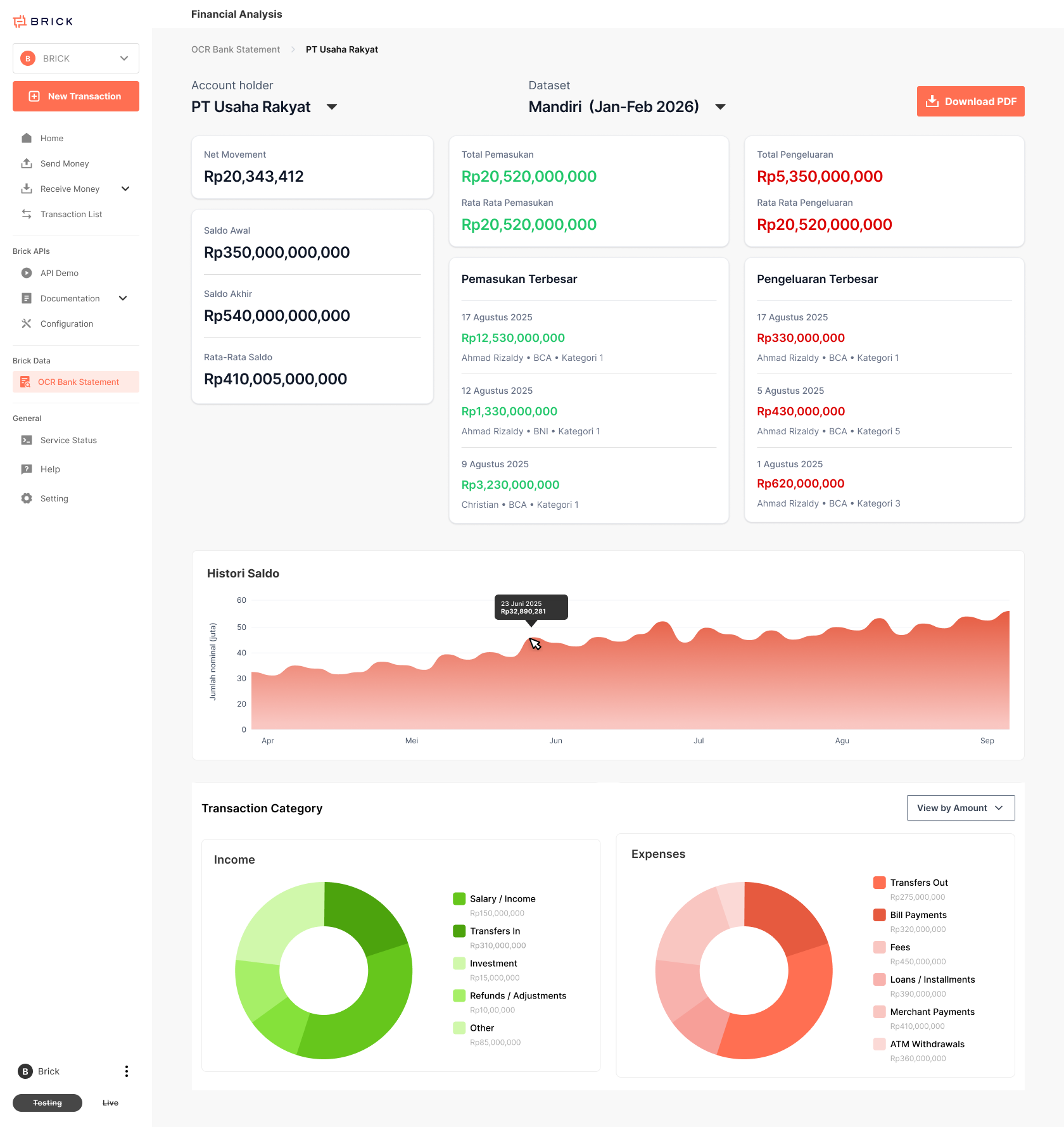
Bank Statement Analysis turns completed OCR statements into structured financial insights, eliminating manual review. It generates clear summaries of income, expenses, and cashflow, with key metrics, visual breakdowns, and downloadable PDF reports.
2. Analysis Result Content
Result Header
•	Account Holder Name
•	Bank Institution
•	Period (derived from OCR data)
KPI Summary
•	Net Movement
•	Starting Balance
•	Ending Balance
•	Average Balance
•	Total & Average Income
•	Total & Average Expense
Transaction Categorization
Income
•	Salary / Income
•	Transfers In
•	Investment
•	Interest
•	Refunds / Adjustments
•	Others
Expense
•	Transfers Out
•	Bill Payments
•	Fees
•	Loans / Installments
•	Taxes
•	Merchant Payments
•	Subscriptions
•	ATM Withdrawals
•	Operational Expenses
•	Others
This enables faster, more consistent financial review through standardized and automated outputs.
User Eligibility
The system enforces eligibility at both the feature and page level to ensure controlled access to real analysis data.
✅ Eligible Users Can:
• Run real bank statement analysis
• View actual financial results
• Access Analysis History
• Download official PDF analysis reports
• Revisit past analysis sessions⚠️ Non-Eligible Users (shows from banner page):
• Can access the analysis UI
• Can select OCR statements
• Can trigger sample / demo analysis
• ❌ Cannot access Analysis History
• ❌ Cannot download real PDF reportsThis allows teams to preview functionality before enabling full access
3. How to Use Bank Statement Analysis
Follow these steps to analyze completed OCR bank statements.
Step 1 — Open the OCR Bank Statement Page
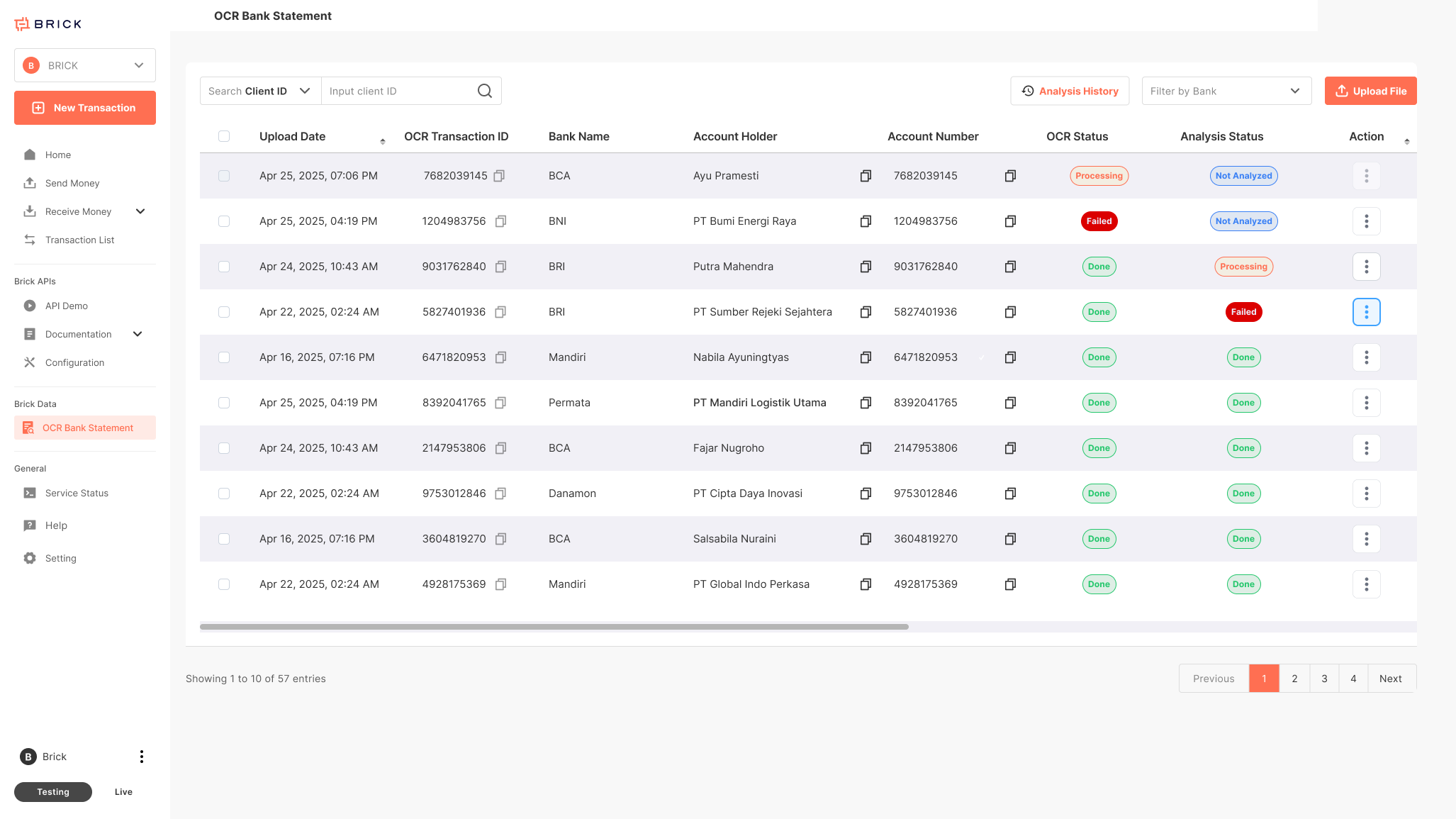
- Navigate to the OCR Bank Statement page.
- Locate the ocr statement you want to analyze (status must be Completed).
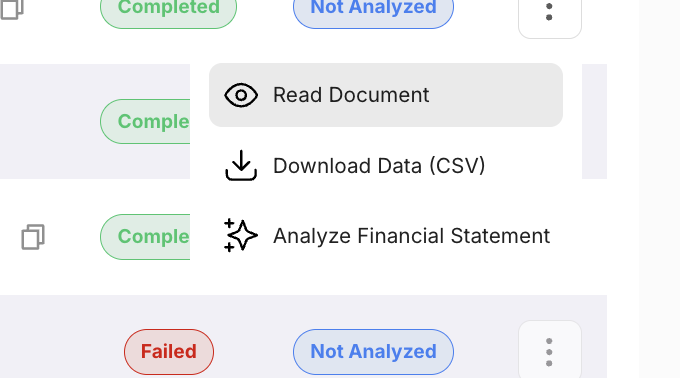
- Click the More (⋮) button on the right side of the statement row.
- From the dropdown menu, select:✨ Analyze Financial Statement
Step 2 — Analysis Starts (Processing)
Once you click Analyze Financial Statement:
- The system automatically starts the analysis process.
- The status will change to: 🟠 Processing
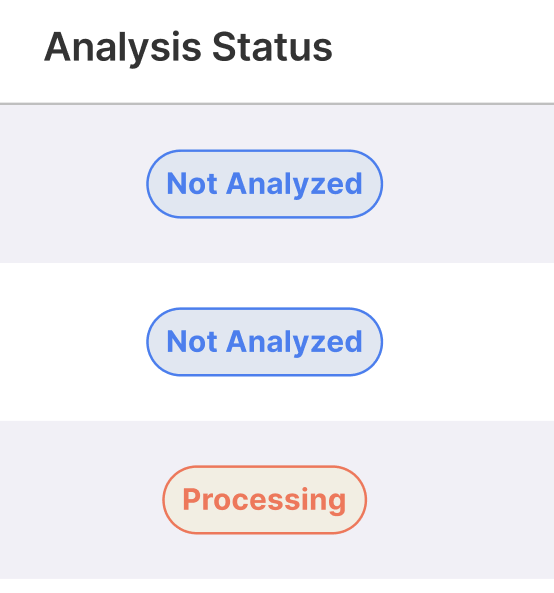
Analysis runs in the background asynchronously.
You may leave the page and return later.
Analysis Status States
• Not Analysed – OCR files have not yet been analyzed
• Processing – analysis is running
• Done – analysis completed successfully
• Failed – analysis failed
Step 3 — Analysis Completed
When the process finishes successfully:
• The status will change to: 🟢 Completed
To view the result:
1. Click the More (⋮) button again
2. Select 📄 View Analyzed Result
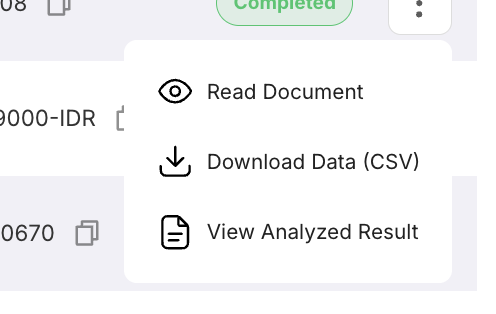
The system will open the analysis dashboard with:
• KPI summary (Income, Expense, Balance)
• Cashflow trends
• Category breakdown charts
• Largest income & expense transactions
Alternative Way — View from Analysis History
You can also access completed analyses from:
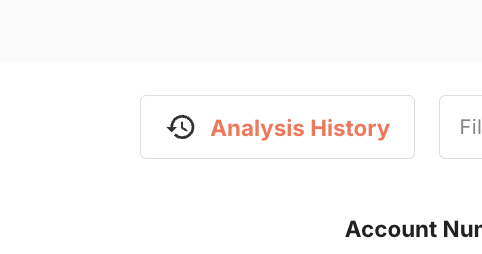
📜 Analysis History
1. Click Analysis History
2. View the list of completed analysis transactions
3. Click More (⋮)
4. Select View Analyzed Result
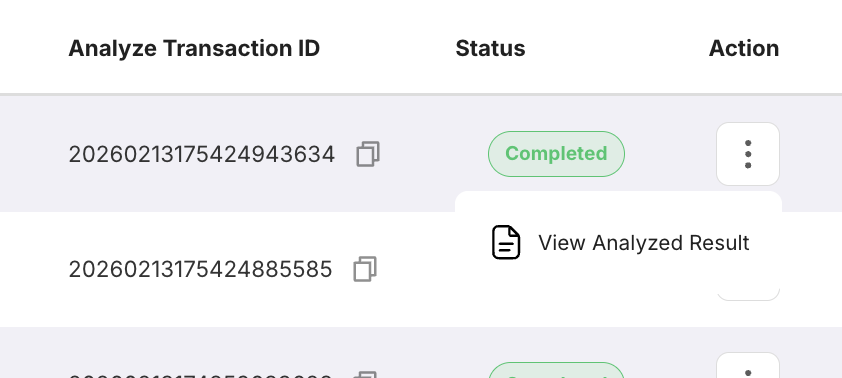
This is useful when:
• You want to revisit previous analysis
• You forgot which OCR file was used
• You want to review historical results
Step 4 - Download Generated Report

Once the analysis status is Completed:
1. Open the analyzed result page
2. Click the Download PDF button
3. The system will generate and download the finalized analysis report