


Dashboard
Single Transfer
Use cases
- Vendor Payment
Send payment to a single supplier or partner for a completed service or invoice. - Refund to Customer
Return funds to a customer for a cancelled order or overpayment. - Salary Adjustment
Process one-off payments such as bonuses, reimbursements, or corrections. - Operational Expense
Pay utilities, subscriptions, or other business expenses individually. - Urgent Transfer
Send immediate funds to a specific recipient without batching multiple transactions. - Withdrawal to Preferred Bank Account
Transfer available balance from the platform to your registered or preferred bank account for settlement or operational use.
User Guideline
Step 1 - Access the Feature
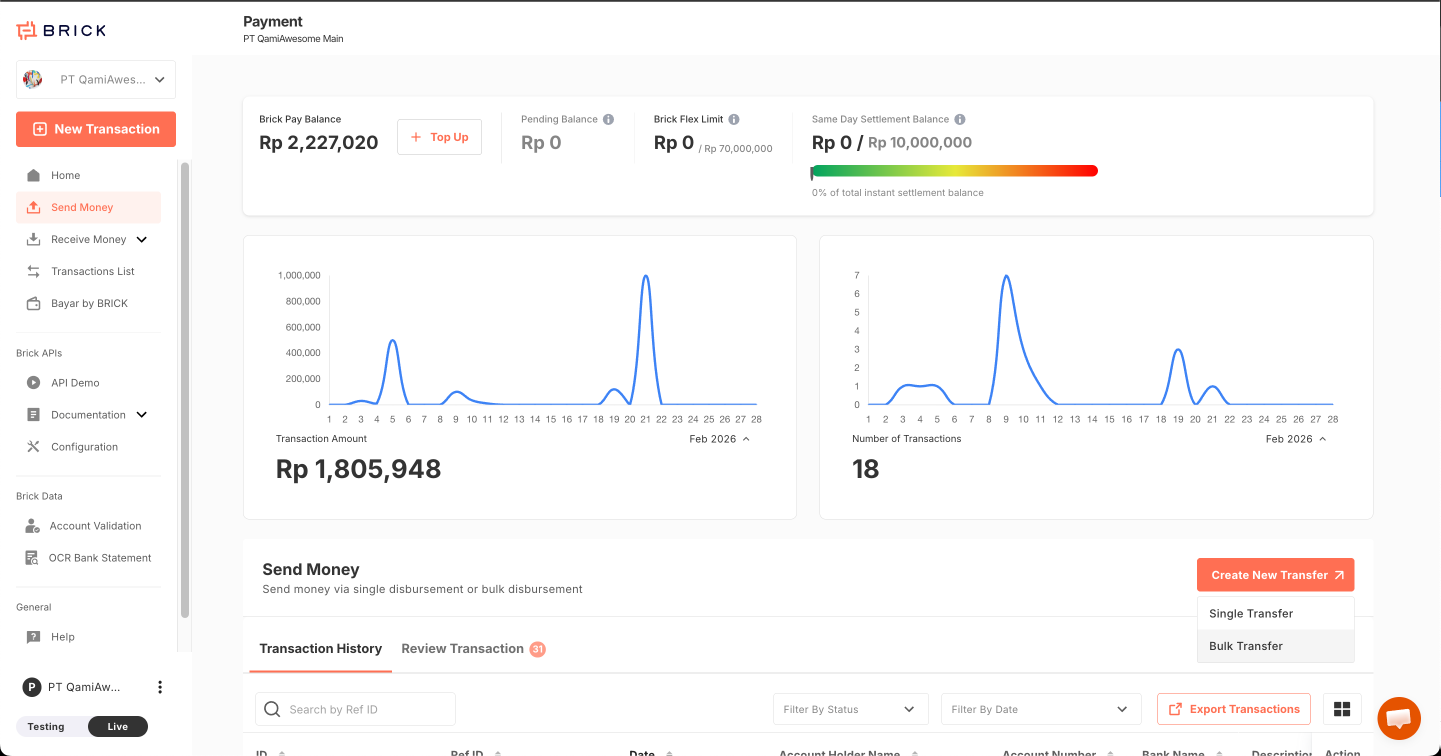
From the left sidebar navigation, select Disbursement → Single Disbursement
Step 2 - Enter Destination Details
Input the recipient's bank details:
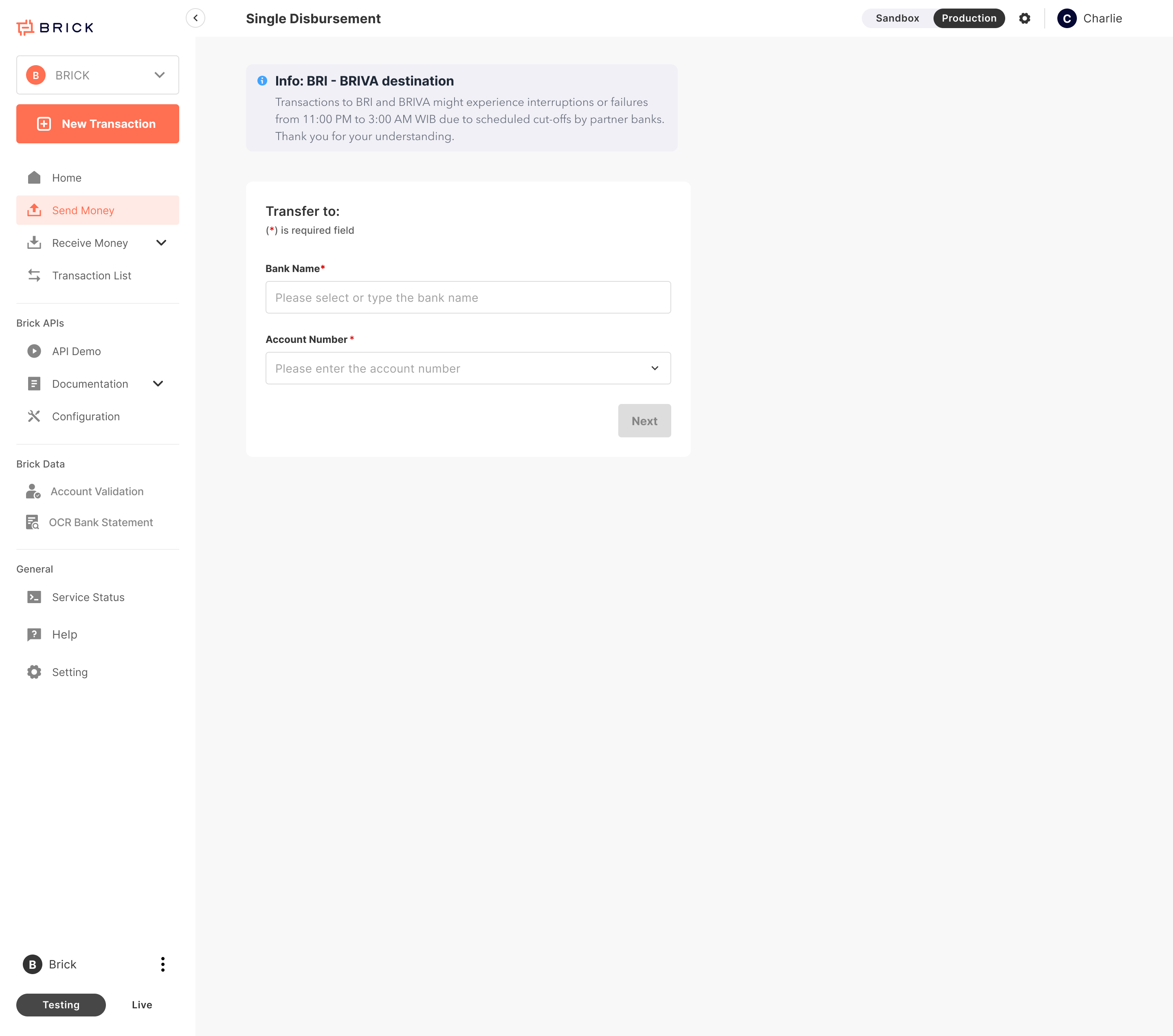
- Bank Name (Required)
- Bank Account Number (Required)
🚦 Validation Check
The system automatically validates account details and performs a cut-off time check to ensure alignment with partner bank windows. If validation fails, an error message will prompt you to correct the information before proceeding.
Step 3 - Complete Transaction Information
Once validated, provide the following transfer details:
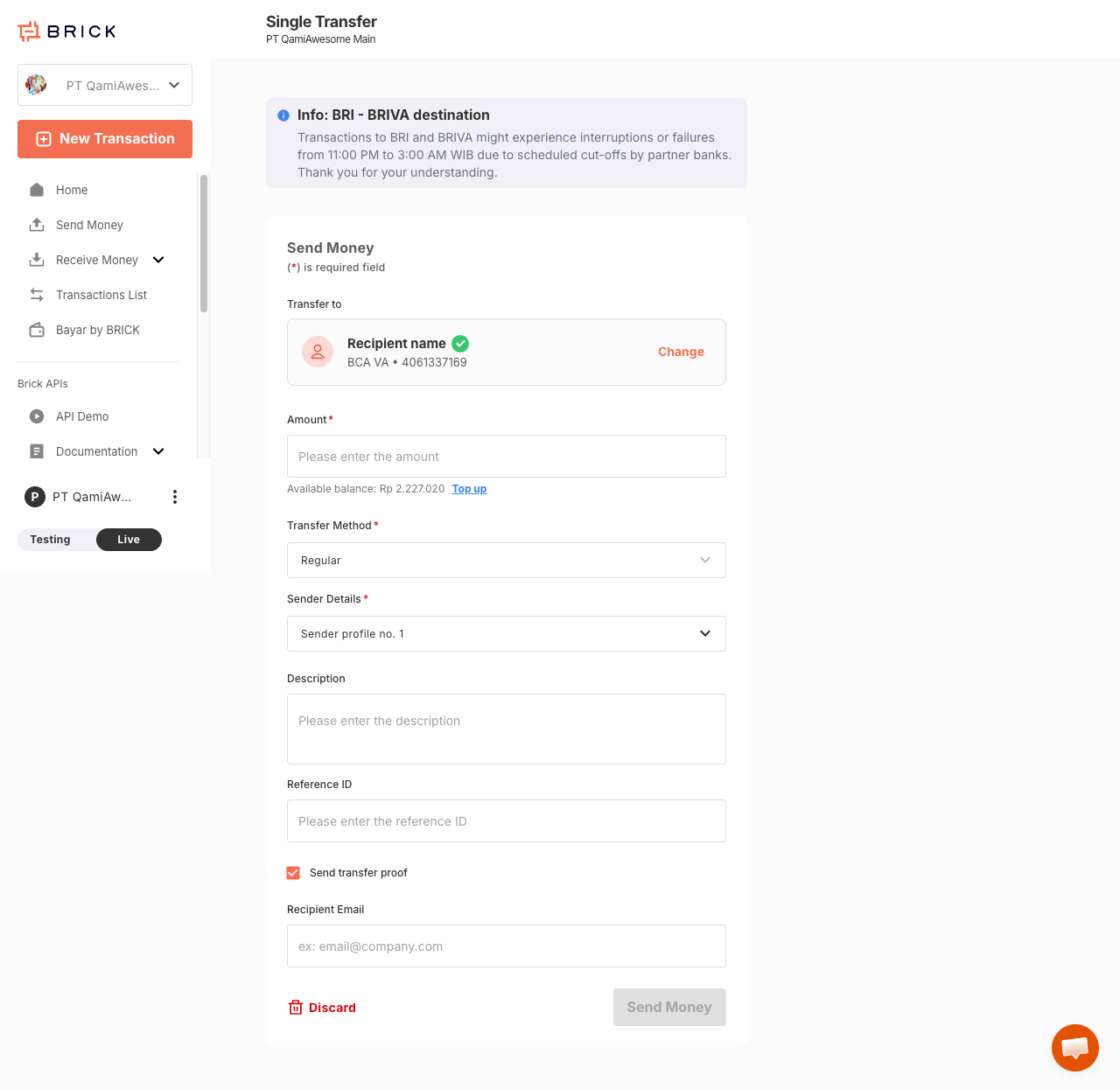
- Amount: The total funds to be sent.
- Transfer Method: BI-FAST / Regular transfer method.
- Sender details: Identifies the payment originator, commonly referred to as the Sender. Refer here for full details.
- Description / Notes: Purpose of the transfer.
- Reference ID: Your internal tracking number.
- Send Transfer Proof: (Optional) Check this box to enter the recipient’s email for an automated receipt.
Step 4 - Confirmation and Processing

Click "Send Money" to authorize the transaction.
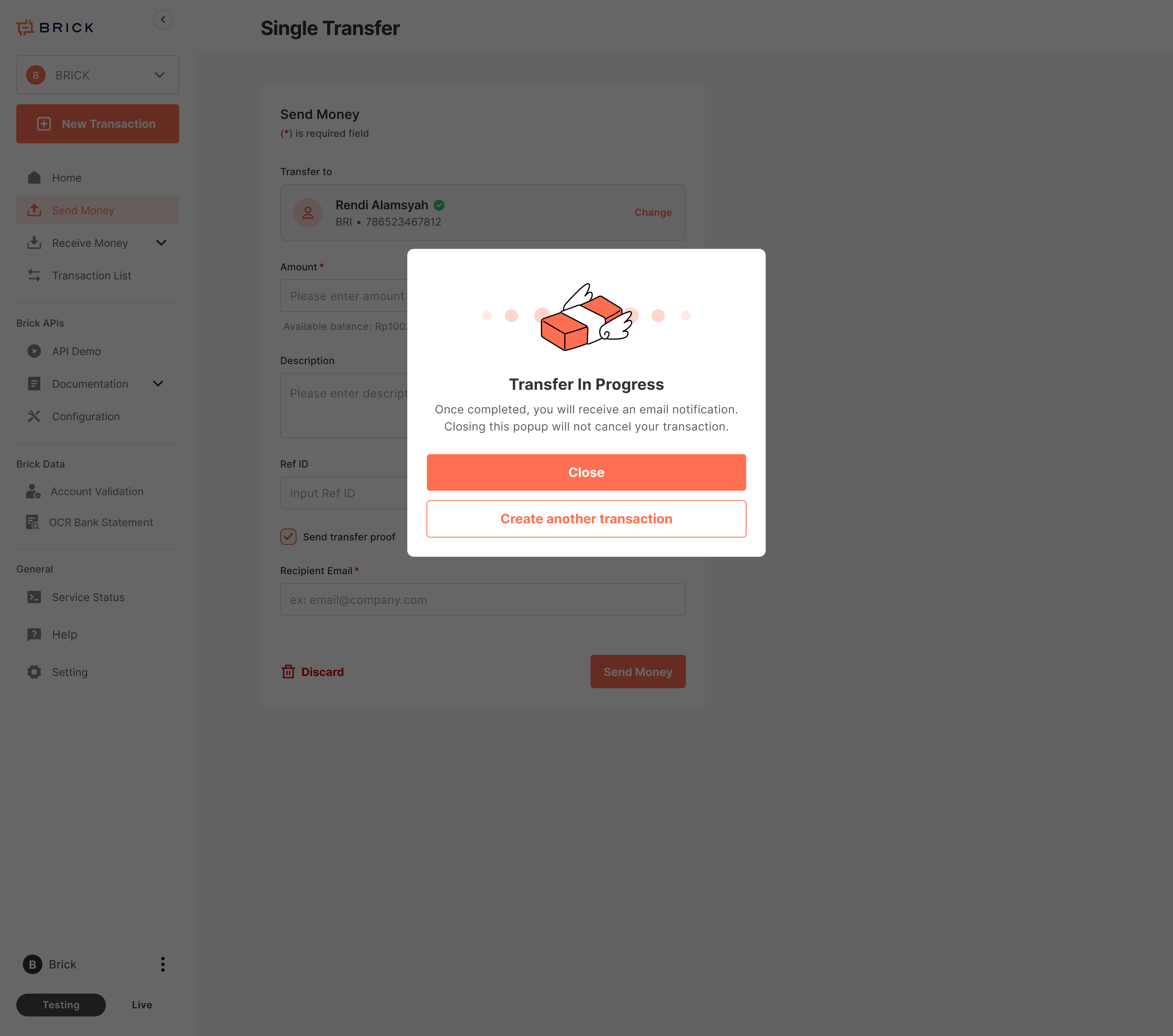
Processing: The system displays "Transfer in Progress." You can monitor this in the Transaction List.
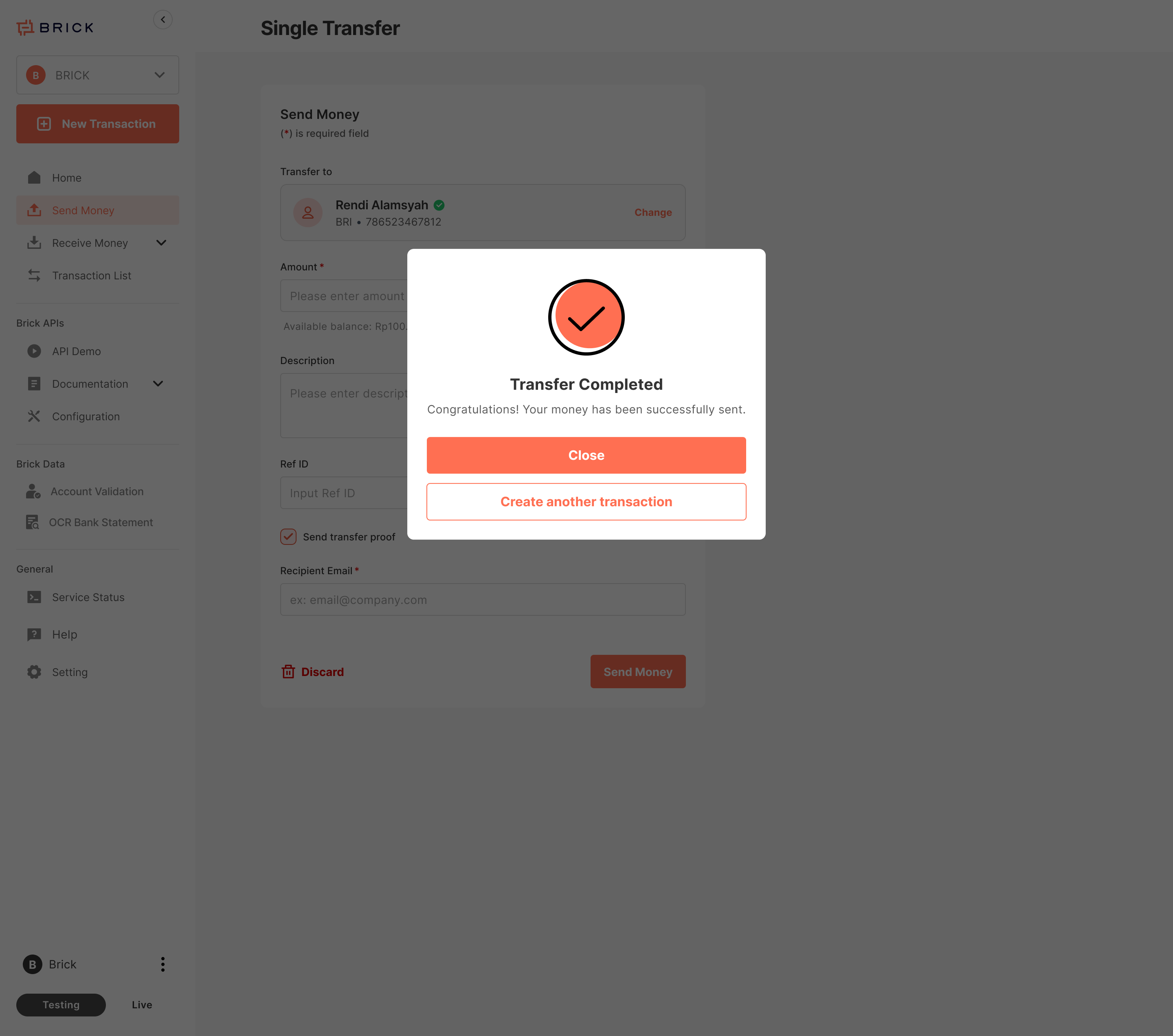
Success: If the transaction is completed instantly, a success confirmation message will appear immediately.
Last modified on