
OCR Bank Statement
Overview
OCR Bank Statement allows you to upload a bank statement and automatically extract structured financial data. The extracted result is processed by Brick and delivered in CSV format for further analysis or record-keeping.
This feature is available through the Brick Dashboard and API
Output
After a successful upload and processing, you will receive:
• A transaction record in the OCR Bank Statement list
• A CSV file containing extracted data
• An email notification (when enabled via client dashboard or provided in the API request.)
Prerequisites
Before using OCR Bank Statement, ensure the following:
• You have access to the Brick Dashboard
• You have a supported bank statement file:
• Requirement: Digital e-statement (PDF)
• Maximum file size: 5 MB
How to Use
Step 1: Access OCR Bank Statement
1.	Log in to the Brick Dashboard
2.	Navigate to Brick Data → OCR Bank Statement
3.	The OCR Bank Statement list page will be displayed
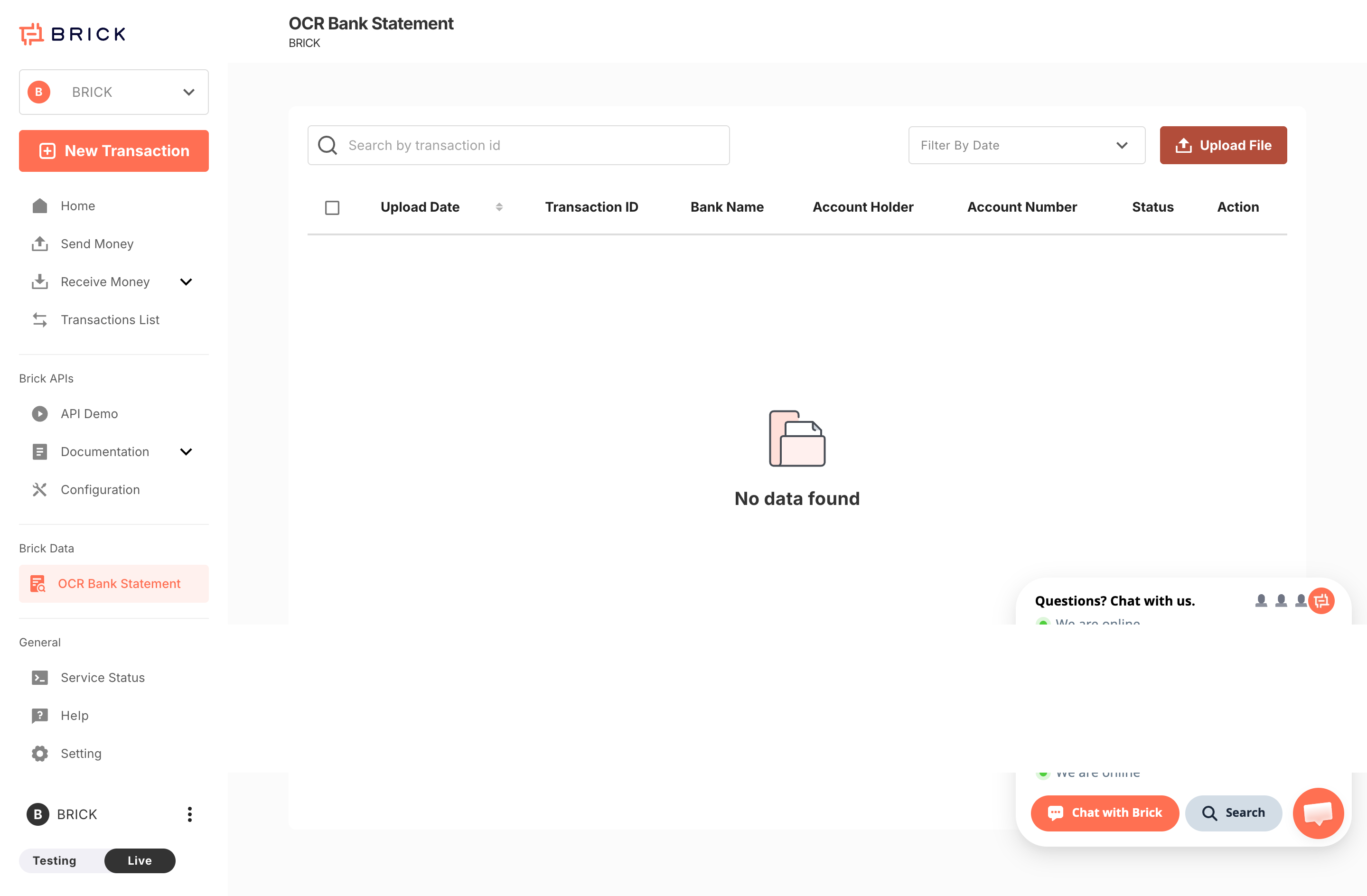
If no data exists, the page will show “No data found.”
Step 2: Upload a Bank Statement
- Click Upload File at the top-right corner
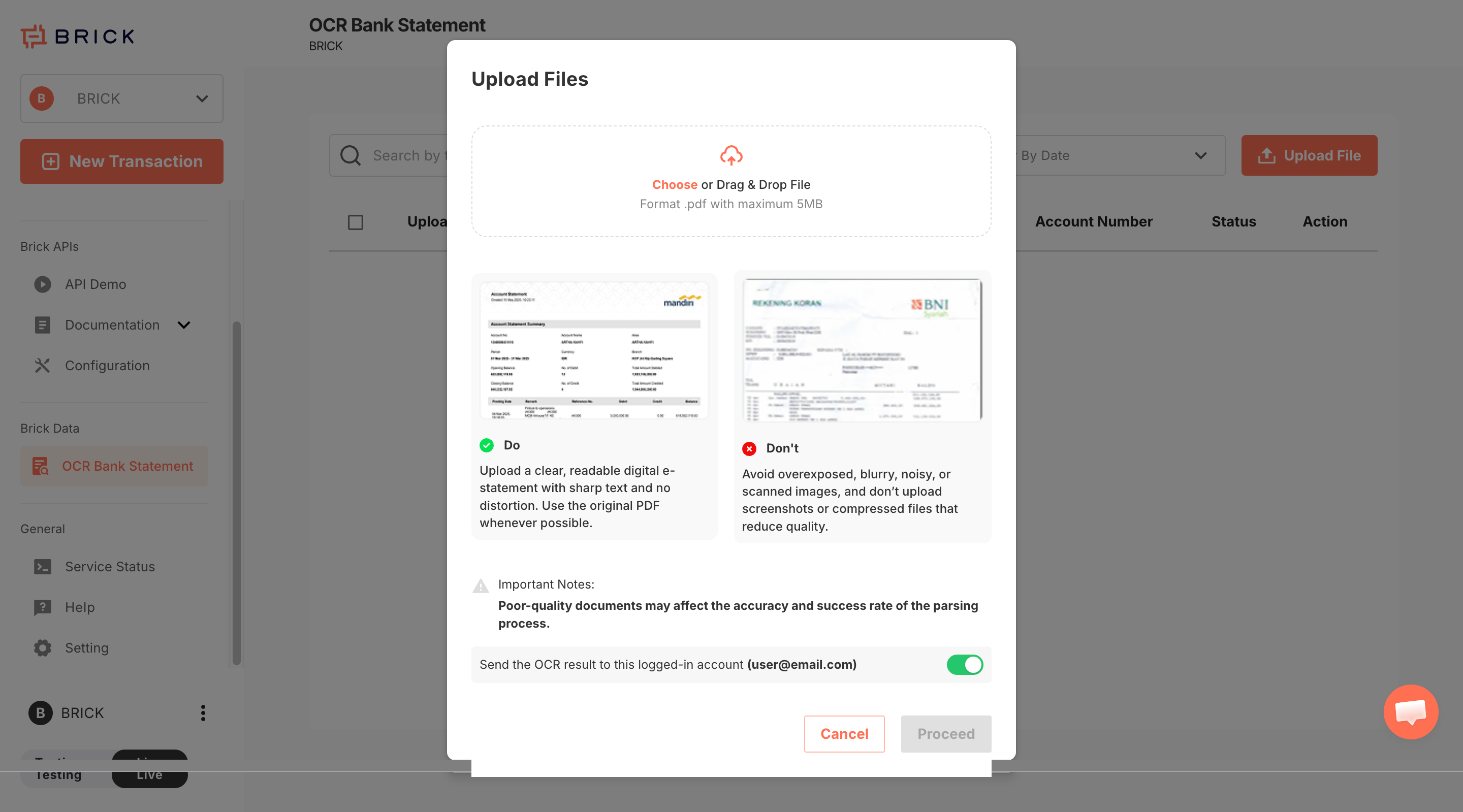
- In the upload modal:
• Select or drag-and-drop a file
• Ensure the file size does not exceed 5 MB - (Optional) Enable Send the OCR result to this logged-in account
- Click Proceed to start processing
File Quality Guidelines
Recommended
- Clear, readable digital bank statements
- Original PDF files with sharp text
Not Recommended
- Blurry or noisy scanned images
- Screenshots
- Heavily compressed files
⚠️ Poor file quality may reduce OCR accuracy or cause processing failure.
Step 3: Monitor Processing Status
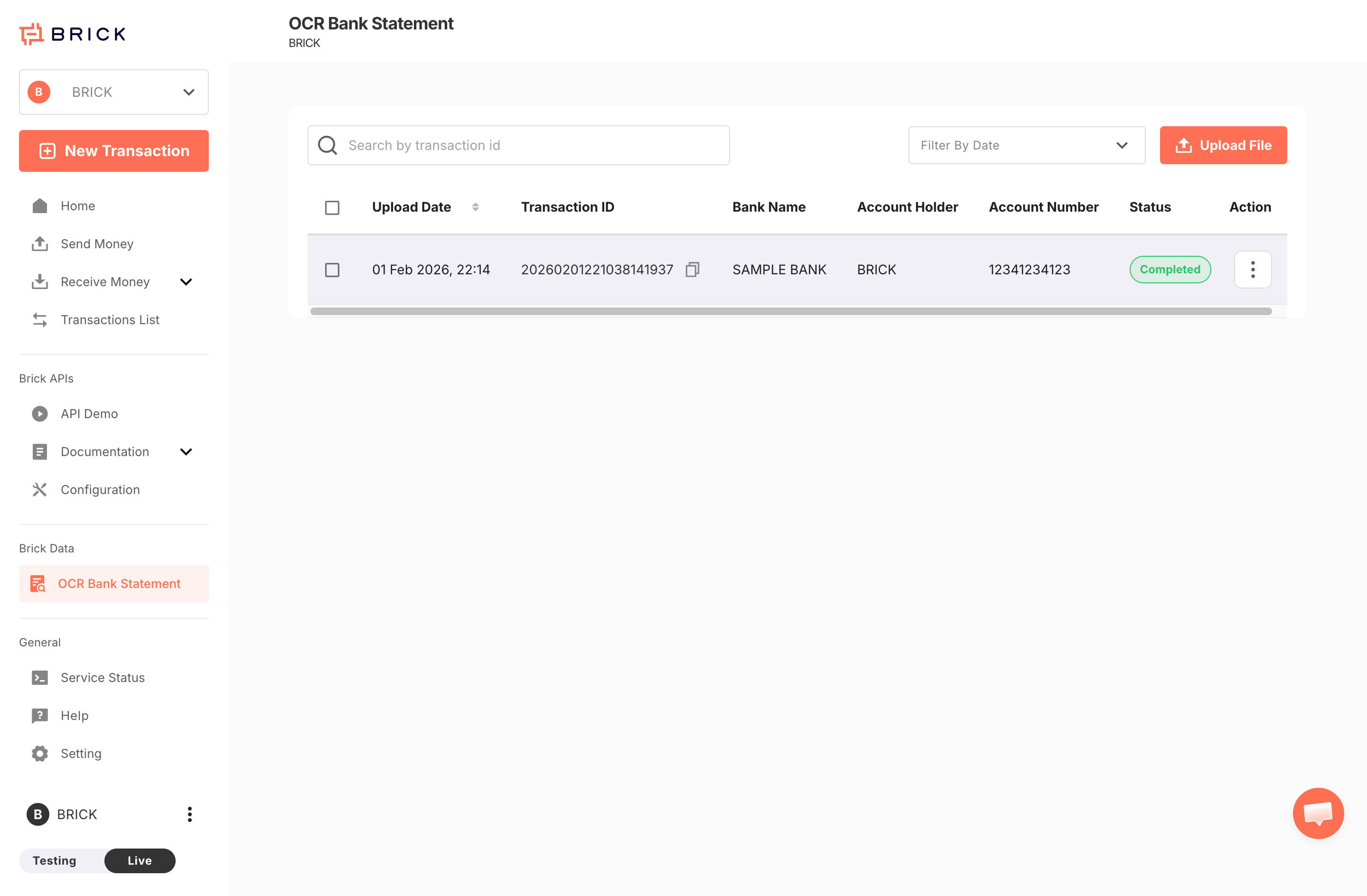
After uploading, a new record will appear in the list with details such as:
• Upload Date
• Transaction ID
• Bank Name
• Account Holder
• Account Number
• Status
Use:
• Search by transaction ID to locate a specific record
• Filter by date to narrow results
Step 4: Retrieve OCR Result
Once the transaction status is Completed, you can retrieve the OCR result using one of the following methods:
Option 1: Via Email
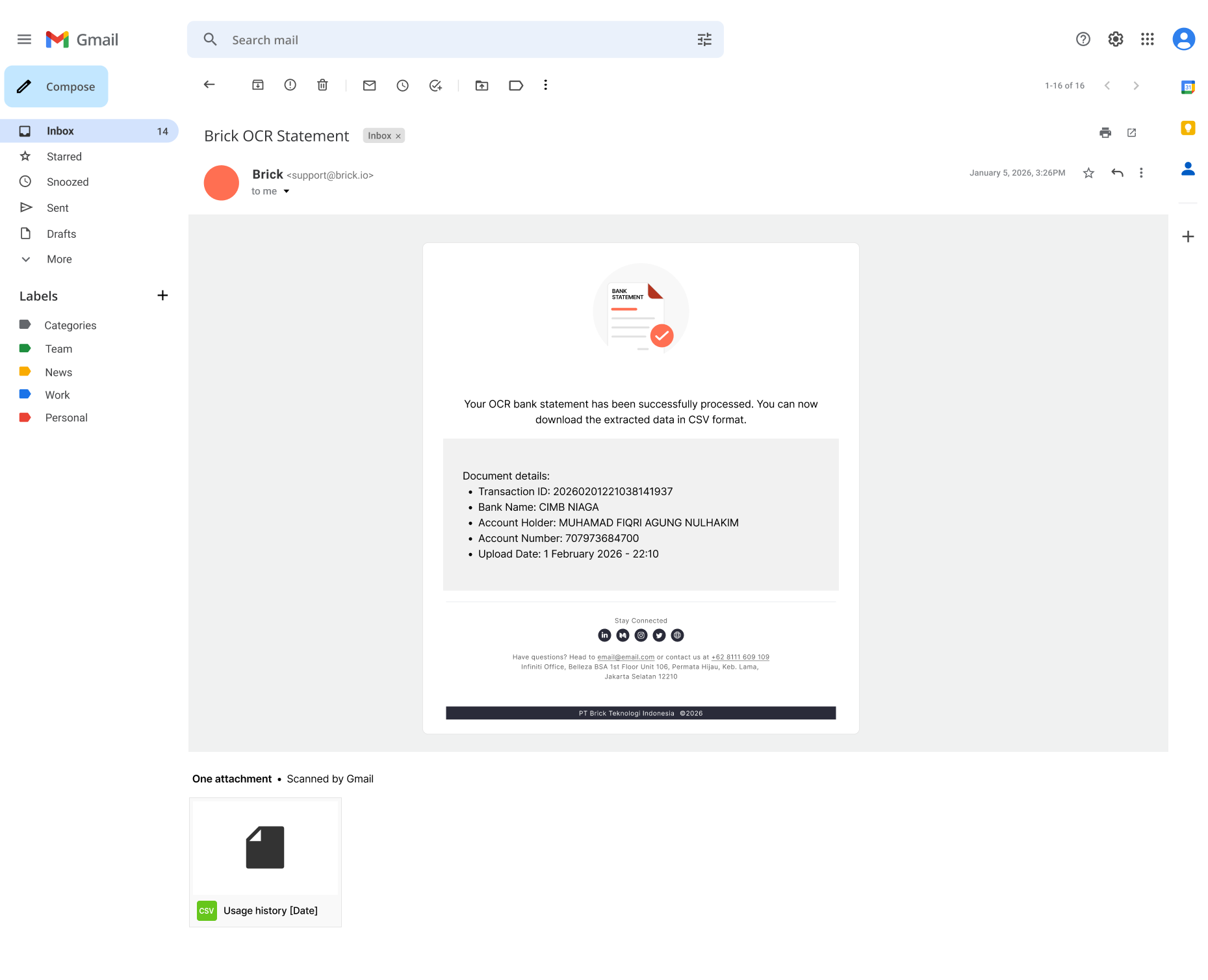
- Open your email inbox
- Locate the email titled Brick OCR Statement
- Download the attached CSV file
The email is sent only if the email delivery option was enabled during upload or specified in the API request.
Option 2: Via Dashboard
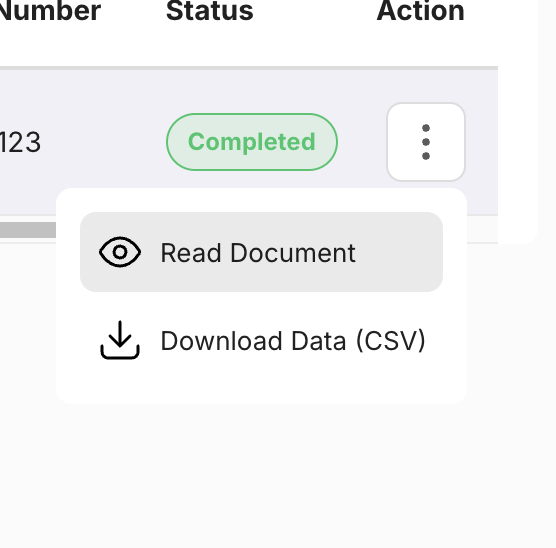
- Navigate to the OCR Bank Statement page
- Click the Action (⋮) menu on the selected record
- Choose Read Document to view the parsed result, or
- Select Download Data (CSV) to download the extracted data
Updated 2 days ago