


Bank Statement Analysis Overview
Bank Statement Analysis helps your team turn supported digital bank statement PDFs into structured data that can be reviewed, downloaded, and used for financial analysis workflows.
The process starts with OCR Bank Statement. Upload a statement through the Brick Dashboard or the Extract Bank Statement OCR API, monitor the processing status, then retrieve the extracted CSV result. Completed OCR output can be used for record-keeping, reconciliation, internal review, underwriting preparation, risk workflows, customer-support investigation, or downstream Bank Statement Analysis.
When to Use Bank Statement Analysis
Use this flow when your team needs to:
- Process bank statement PDFs without manually copying transaction rows.
- Extract account holder details, account numbers, transaction activity, and statement metadata.
- Convert supported statements into standardized CSV output.
- Review uploaded statements from the dashboard or through an API-based workflow.
- Use completed OCR output as input for Bank Statement Analysis.
How the Flow Works
- Upload a supported bank statement PDF from the Brick Dashboard or API.
- Brick processes the file with OCR Bank Statement.
- Track the processing status from the dashboard or by using the returned transaction ID.
- Retrieve the extracted data as CSV, view the parsed document, or receive the result by email when enabled.
- Use the completed output for reconciliation, reporting, or financial analysis.
Output
After the statement is processed successfully, you can receive:
- A transaction record in the OCR Bank Statement list.
- A CSV file containing extracted data.
- A parsed document view from the dashboard.
- An email notification when email delivery is enabled in the dashboard or provided in the API request.
Prerequisites
Before using Bank Statement Analysis, ensure that:
- You have access to the Brick Dashboard.
- You have a supported digital e-statement in PDF format.
- The file size does not exceed 5 MB.
How to Use
Step 1: Open OCR Bank Statement
- Log in to the Brick Dashboard.
- Navigate to Financial Insight > OCR Bank Statement.
- Review the OCR Bank Statement list page.
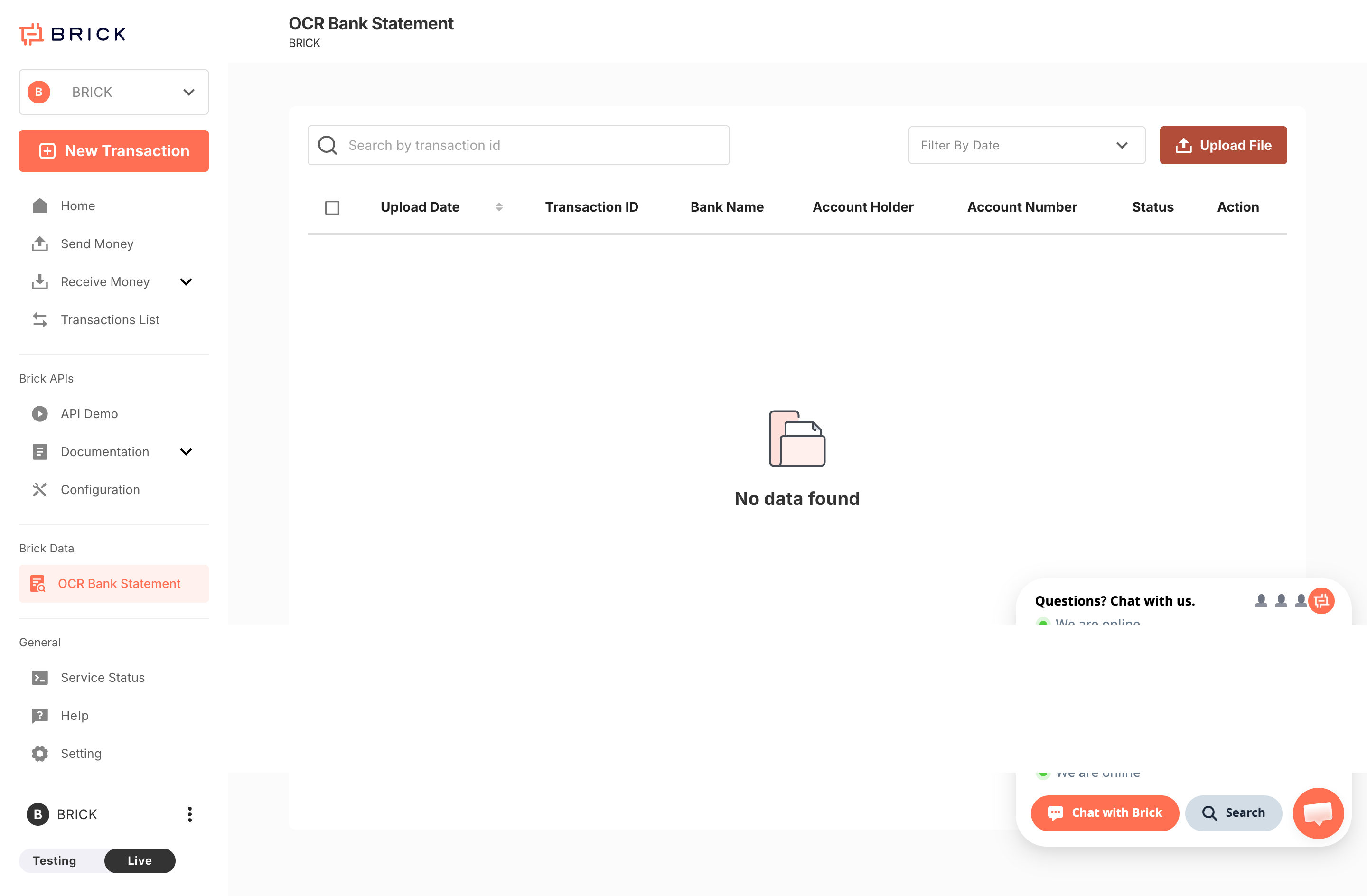
If no data exists, the page will show "No data found."
Step 2: Upload a Bank Statement
- Click Upload File at the top-right corner.
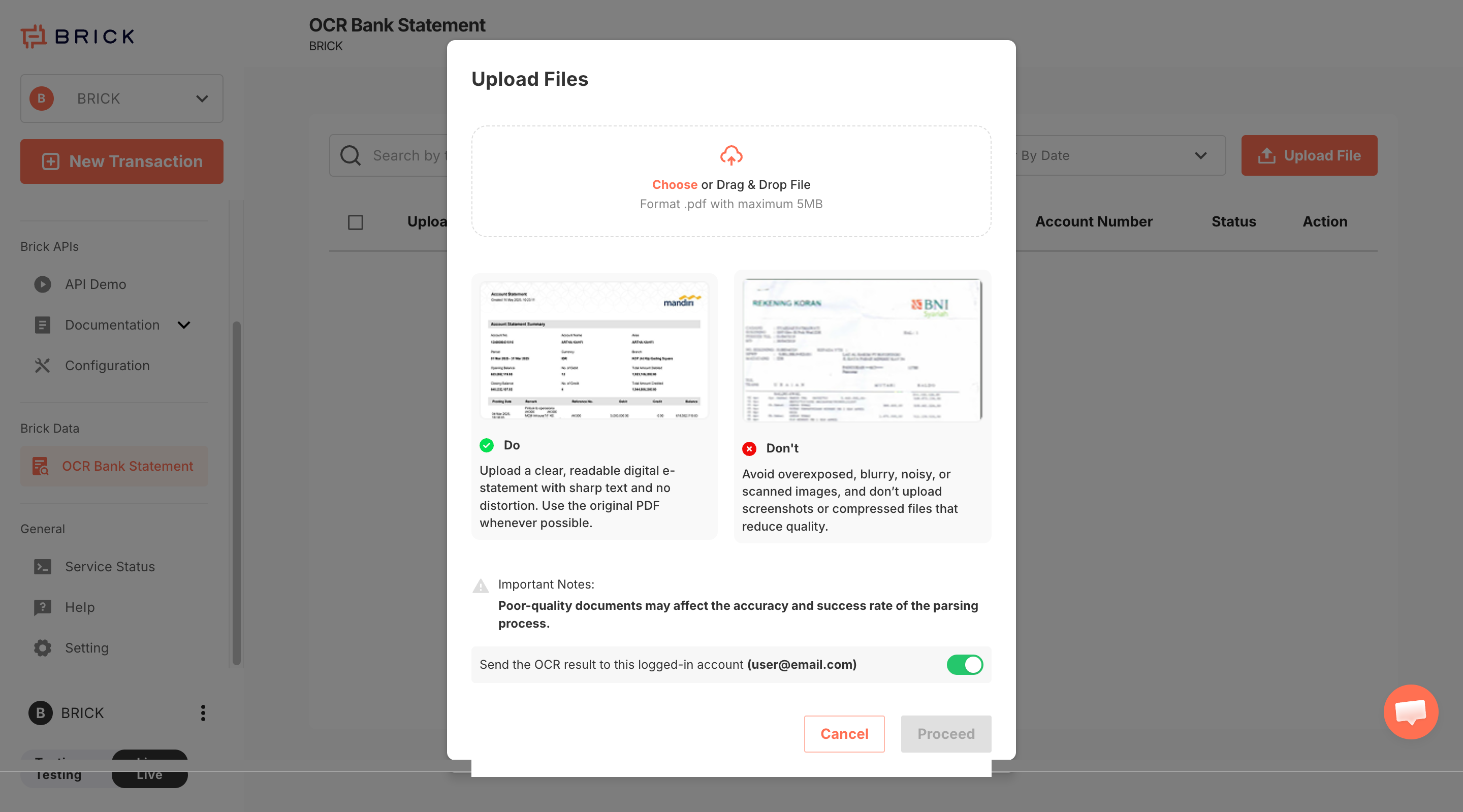
- In the upload modal:
- Select or drag-and-drop a file.
- Ensure the file size does not exceed 5 MB.
- Optional: enable Send the OCR result to this logged-in account.
- Click Proceed to start processing.
File Quality Guidelines
Recommended
- Clear, readable digital bank statements
- Original PDF files with sharp text
Not recommended
- Blurry or noisy scanned images
- Screenshots
- Heavily compressed files
Poor file quality may reduce OCR accuracy or cause processing failure.
Step 3: Monitor Processing Status
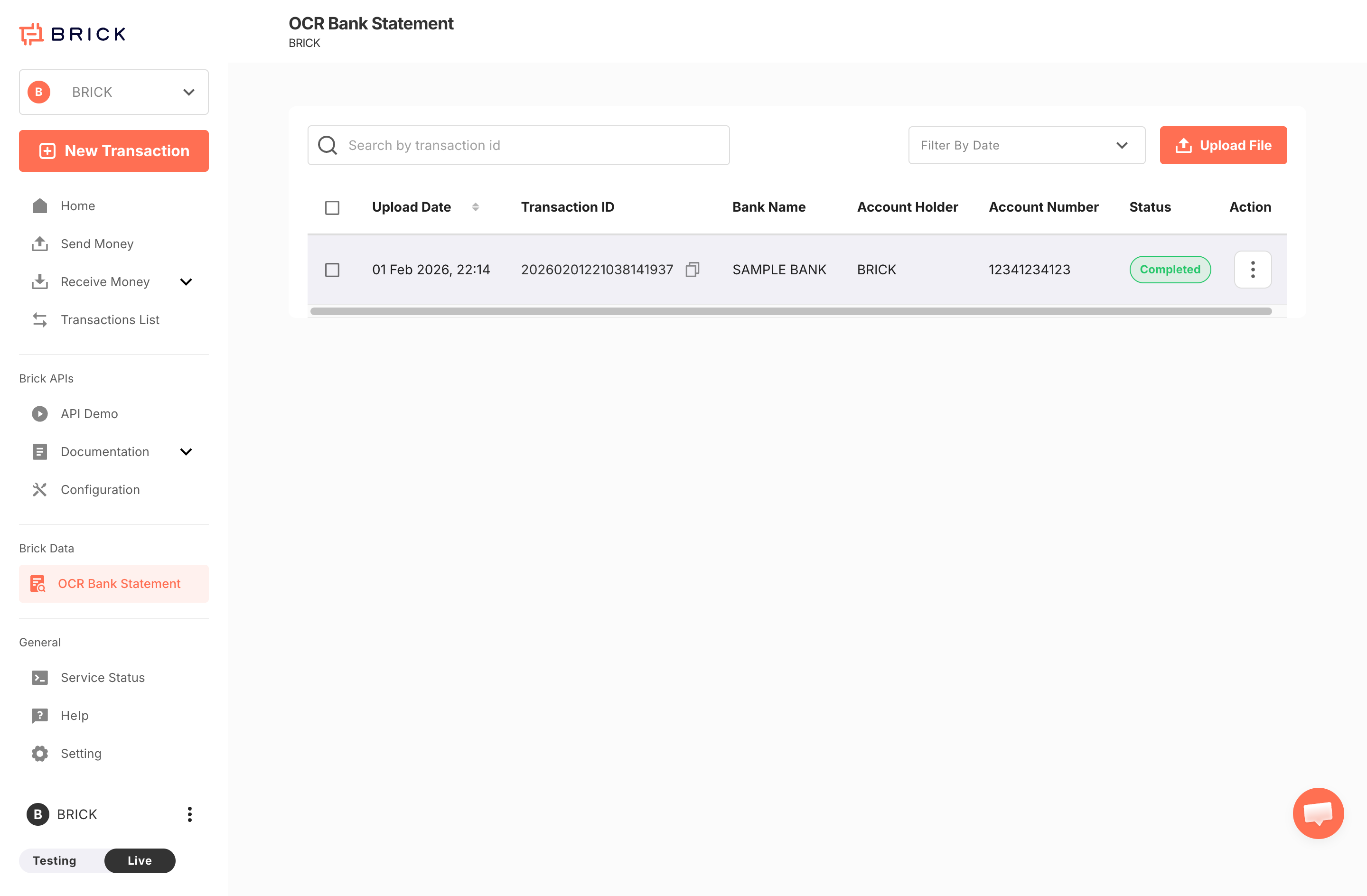
After uploading, a new record appears in the OCR Bank Statement list with details such as:
- Upload Date
- Transaction ID
- Bank Name
- Account Holder
- Account Number
- Status
Use search by transaction ID to locate a specific record, or filter by date to narrow the results.
Step 4: Retrieve OCR Result
Once the transaction status is Completed, retrieve the OCR result using one of the following methods:
Option 1: Via Email
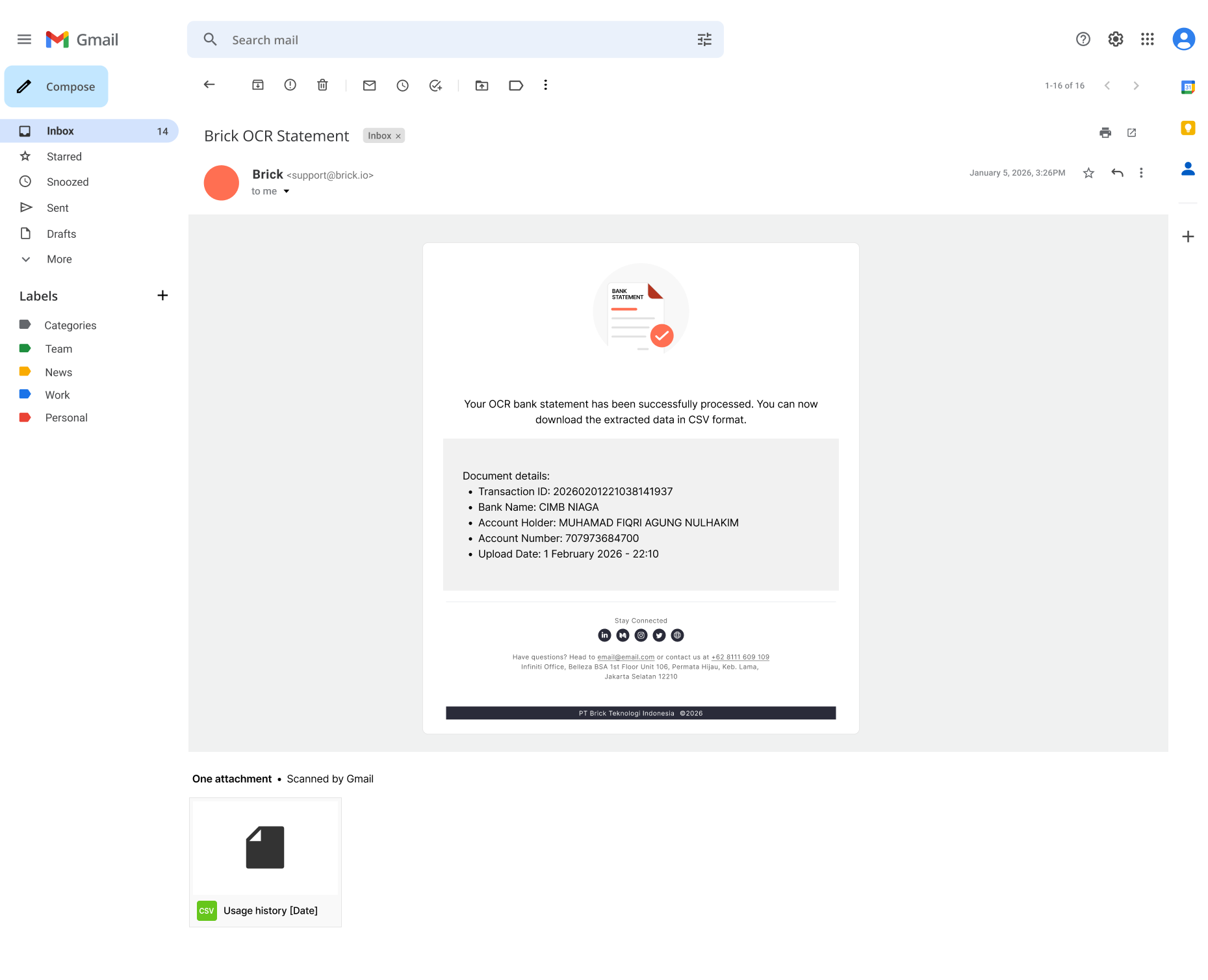
- Open your email inbox.
- Locate the email titled Brick OCR Statement.
- Download the attached CSV file.
The email is sent only if the email delivery option was enabled during upload or specified in the API request.
Option 2: Via Dashboard
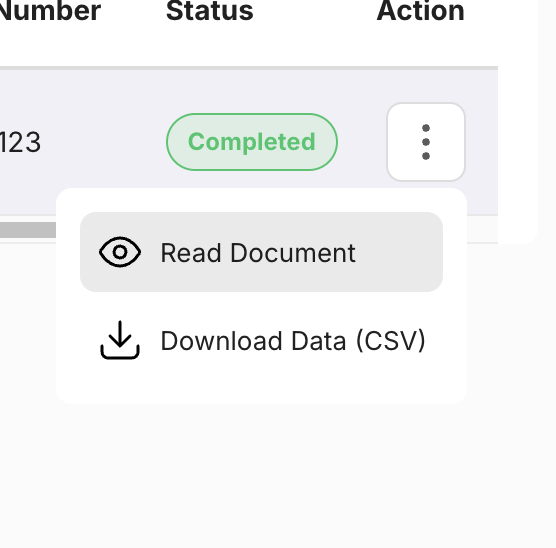
- Navigate to the OCR Bank Statement page.
- Click the Action menu on the selected record.
- Choose Read Document to view the parsed result.
- Select Download Data (CSV) to download the extracted data.